Industry guides · 4 min read
How to get a list of restaurants in New York City (and export it to CSV)
Build a borough-by-borough restaurant spreadsheet for a delivery route, check it against NYC inspection records, and export the locations you need.
A bakery with one refrigerated van doesn't need a national restaurant database. It needs a list of kitchens inside Tuesday’s delivery area. A restaurant group with six addresses could be one purchasing account and six delivery stops. Decide which of those you’re counting before you download anything.
If you literally need all restaurants, start with NYC Health’s inspection dataset linked below, not a claim of complete search coverage. Use Leads Gatherer to find business listings, websites and contact fields; use the public dataset as a separate cross-check. New York City and New York State are different markets.
Step by step
- 01
Get the city’s starting list if coverage is your priority
Open the NYC Health dataset linked at the end of this guide. On the Data.gov page, go to Resources → CSV → Download. Keep the raw file untouched. In a working copy, filter BORO to your borough, then group by CAMIS rather than counting lines. Keep the business name and address with each ID. This gives you an inspection-program baseline, not a contact directory; use the following steps for the business listings and public contact fields.
- 02
Start a restaurant campaign, not a statewide search
Open Campaigns. In Campaign name, enter “Restaurants — NYC — delivery route”. In Business type / industry, enter “Restaurants”. The first field labels your list; the second tells the app what to look for. Putting “Brooklyn” in the name alone will not limit the geography.
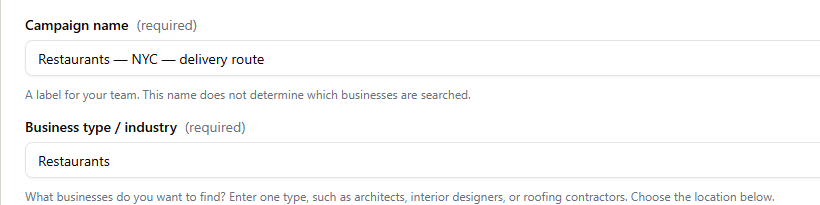
Campaign name labels the list; Business type / industry defines the search · Select the image for full size - 03
Decide what “New York” means for this order
Under Coverage choose City or area coverage, then United States → New York. Choose New York City as the city if listed, or specify the borough or area you can actually serve. For a Brooklyn-only route, request Brooklyn and name the campaign accordingly. For a five-borough project, keep a checklist of all five; do not add overlapping campaigns together as if they were unique restaurants.
- 04
Read the scope and queue it once
Look at the planned searches before pressing Queue … searches. Five searches means five search tasks, not five restaurants. Once a campaign is saved, open its card. If the confirmation is interrupted, inspect the saved list instead of submitting it again.
- 05
Separate the delivery address from the buying account
Choose Open campaign leads. Inspect the restaurant website, street address and phone against its locations page. Keep two same-brand restaurants at different addresses as separate delivery stops; record the parent brand in a separate spreadsheet column. Treat two names at the same address as a review case: a food hall can house multiple kitchens.
On the saved campaign card, click Open campaign leads · Select the image for full size - 06
Download the right slice
In Leads open Export CSV. Use Export all matching for the filtered campaign, or check rows on the current page and use the selected option for a trial route. The per-file cap is 2,000 leads. For a bigger market, use separate, non-overlapping area lists or export one page at a time in stable order; don't assume the first file contains everything.
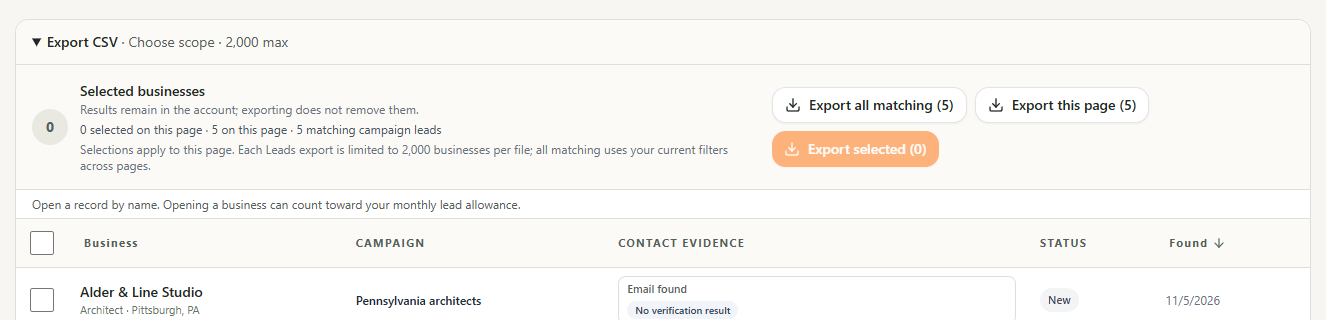
Export CSV: choose all matching, this page or selected rows · Select the image for full size - 07
Check the file against the territory
Open the CSV in your spreadsheet app. Keep name, street address, website and phone. Add borough, delivery day and purchasing account as your own columns. In the NYC inspection source, match by restaurant name and address and use CAMIS, the establishment identifier, to group inspection entries. Several violations or inspection dates do not mean several restaurants. Leave unmatched records marked “check”, not “closed”.
Two storefronts, one buyer
A restaurant group lists a Brooklyn kitchen and a Queens kitchen. Keep two delivery rows, give both the same purchasing-group label, and fill in delivery day separately. If one kitchen has three inspection entries with the same CAMIS, that is still one establishment for this purpose.
Columns for your own working copy: Kitchen / branch · Street address · Borough · Purchasing group · CAMIS if matched · Delivery day · Last checked.
Download the blank worksheet (CSV) ↓ Column headings only. Your Leads Gatherer export is separate.Quick quality check
Take a moment to make sure the list is useful, not just long.
- One row means one kitchen location, not one inspection.
- A spot check of addresses falls inside the delivery area.
- The CSV count matches the slice you chose.
CSV scope: Each Leads Gatherer download supports up to 2,000 businesses. If the matching count is larger, narrow the set or export individual pages. Search progress and contact checks finish separately; a missing email is not a failed business discovery.
Common questions
Can I use the list for New York State instead?
Yes, change the territory. On Professional, Whole state — listed locations follows the app’s place catalog. It is a different search, not an exhaustive state register.
What if a restaurant has no email?
Keep it if the route matters. The published business phone or website can still be useful; an empty email is not evidence the kitchen is closed.
Further reading: NYC Health restaurant inspection results: dataset and CSV download on Data.gov